How to Delete Specific Messages on Character.AI Without Losing the Chat
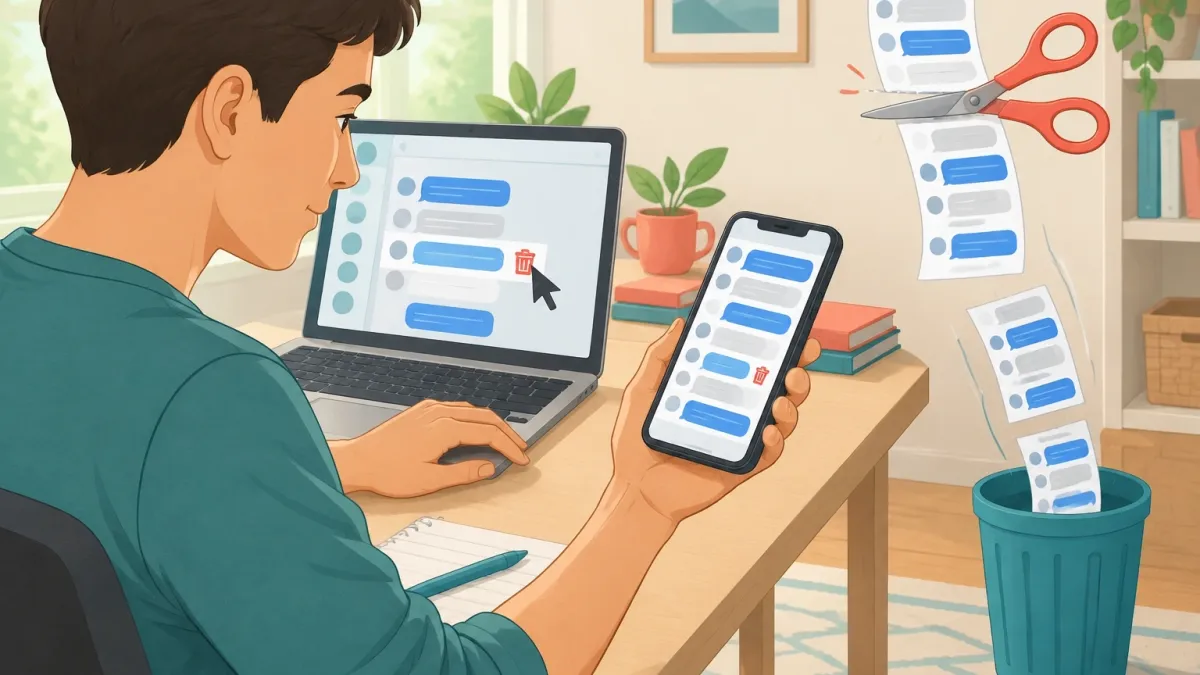
Yes, you can delete individual messages on Character.AI, and it takes about five seconds once you know where to look. On mobile, you long-press the message and tap the trash icon.
On web, you hover over the message and click the same icon.
But before you start clicking, there's one thing you need to understand: deleting a message removes that message and everything after it. The AI forgets all of it permanently.
There is no undo button. I've watched too many people learn this the hard way after nuking a 200-message roleplay arc because they thought they were just removing one awkward reply.
This guide walks you through the exact steps for both platforms, explains what deletion actually does to your conversation, shows you when a different tool would work better, and helps you fix common issues when the delete button refuses to show up.
The Quick Answer — How It Works in Two Platforms
- Mobile (iOS/Android): Long-press the message bubble, tap "Delete" or the trash icon, then confirm in the popup.
- Web (desktop): Hover over the message, click the trash icon that appears next to the reaction buttons, then confirm.
- The confirmation dialog is your last warning. Read it before tapping.
That's the whole flow. But the exact button locations differ between platforms and app versions, so let me break each one down properly.
How to Delete Messages on the Character.AI Mobile App
Step 1 — Open the chat you want to modify
Navigate to the conversation from your chat history and enter it. There is no bulk-delete option from the chat list screen. You have to be inside the chat itself to remove individual messages.
Step 2 — Locate the message and open its options
Long-press directly on the message bubble. This works for both your own messages and the AI's responses.
On some app versions, you'll also see a three-dot menu (⋮) near the message header — tapping that opens the same options.
The interface shifts slightly between updates, so if one method doesn't work, try the other.
Step 3 — Select "Delete" or the trash icon
Look for the red "Remove messages" option in the popup menu. Most current builds of the app use this exact phrasing with red lettering to signal that it's a destructive action.
Step 4 — Confirm the deletion
A warning popup will appear showing what's about to be removed. On some versions, it even tells you how many messages are affected. Tap the red confirmation button to finish.
What if the delete icon isn't appearing?
If you're not seeing the delete option at all, try these fixes in order:
- Update the app from the App Store or Google Play to the latest build.
- Check whether the message is pinned — pinned responses behave differently and need to be unpinned first.
- Tap the message once to select it, then look for a toolbar that appears above the message.
How to Delete Messages on the Character.AI Web Browser
Step 1 — Open character.ai in your browser and enter the chat
The web client works in Chrome, Firefox, Edge, and Safari. Log in and open the conversation you want to edit.
Step 2 — Hover over the message to reveal the action bar
The action bar — which includes arrow icons, an edit pencil, and a delete trash icon — appears on the right side of the message when you hover over it.
Move your cursor slowly over the message footer area if the bar doesn't appear immediately; it can be finicky.
Step 3 — Click the trash icon
Clicking the trash icon opens the deletion flow. Right-clicking sometimes shows a context menu with delete options, but the hover icons are the most reliable method across browsers.
Step 4 — Confirm the dialog box
Pay close attention here.
The web client sometimes shows a count of messages being removed — for example, "This will delete 5 messages." That count includes the message you selected plus everything below it in the thread.
Make sure that's what you actually want.
Keyboard and mouse tips
If the action bar isn't showing up, try hovering exactly over the message bubble itself rather than the empty space around it.
On some browser versions, the icons only appear when your cursor is directly over the text area.
What Actually Happens When You Delete a Message
Here's the part nobody tells you in the Reddit threads. Character.AI conversations are completely linear. There's no branching structure like you'd find in some other AI chat platforms.
When you delete a message in the middle of a thread, the platform removes that message and every single message below it — both the AI's replies and your own follow-up prompts.
Think of it like this: it's not erasing one line from a book. It's tearing out the remainder of the chapter after that line.
The AI's memory resets
Everything you remove vanishes from the AI's context window. The bot will not reference those deleted events later in the conversation because, from its perspective, they never happened.
This is the number one reason users lose storylines — they assume the AI retains some memory of deleted content. It doesn't.
The deletion rewinds the conversation state to that exact point, and the AI moves forward with only what came before.
The branch effect
After you delete, the conversation is effectively rewound. Whatever you type next creates a new path forward.
The AI will respond freshly to where the chat now stands, with no knowledge of the deleted branch.
There is no undo button
There is no trash folder, no recovery system, no archive of deleted messages. Once you confirm, it's gone permanently.
If you're experimenting with deletions, back up your favorite exchanges first using the copy or share feature, or just take a screenshot.
Pro tip: before deleting large chunks of a conversation, copy your favorite AI responses into a note-taking app.
You'll thank yourself later when you want to reference something from a thread you pruned.
Delete vs. Edit vs. Regenerate vs. Pin — Choosing the Right Tool
Here's where most people accidentally destroy their chats. They reach for "delete" when a lighter tool would have done the job.
Character.AI gives you four distinct actions, and they all do different things:
| Action | What It Does | Best Used When |
|---|---|---|
| Delete | Removes the message and everything below it; resets AI context to an earlier point | The entire conversation branch derailed and you want to start fresh from a specific fork |
| Edit (pencil icon) | Rewrites a message's text in place; the AI treats the edited text as canonical going forward | You want to fix a typo, rephrase a prompt, or correct an AI response without losing the thread |
| Regenerate/Swipe (arrow icons) | Produces a new AI response for the same prompt; the old response is replaced but nothing below it is affected | You hate only the AI's last reply and want another take on the same input |
| Pin (pin icon) | Pins a favorite response so it cannot be swept away by deletion | You have a message you love and want to protect it from accidental removal |
Quick decision rules
- Hate only the last reply? Use regenerate, not delete.
- Want to rewrite your own prompt or the AI's reply without starting over? Use edit.
- Conversation derailed five or more messages ago? Use delete back to the fork point.
- Love a message and want to protect it? Pin it first.
Common confusion — "I deleted, why is the edit still showing my old text?"
Deletion and editing are independent functions. Sometimes the interface takes a moment to refresh and displays stale content. A full page refresh usually clears this up.
The server state is correct even if the UI looks behind.
Troubleshooting — Why Can't I Delete Messages on Character.AI?
The delete button is grayed out or missing entirely
This is the most common complaint, and it usually comes down to one of three causes:
- Outdated app version: Older builds have different interfaces. Update the app and the delete option should appear.
- The message is pinned: Unpin it first, then try deleting again.
- Stale cached session: Hard-refresh your browser on web, or log out and back in on mobile. This clears any stuck client state.
Deletion fails or hangs on a spinner
This is typically a sync or connection issue. Wait a few seconds to see if the request processes. If it doesn't, refresh the page and check whether the message was actually removed.
One warning: don't refresh mid-deletion. The deletion may not save, but you could lose your scroll position in the chat.
The AI replies to a deleted message anyway
This happens occasionally because the AI's response was cached in your browser or a parallel tab was open. The server-side state is correct, but the client briefly "remembers" the old content.
A full page refresh forces the client to sync with the server and resolves this.
Web version and mobile version disagree
The two platforms store chat state independently. If you delete a message on mobile, the web version might still show it until you refresh. Same in reverse.
This is a known quirk of how Character.AI syncs across devices.
Age-restriction and community guideline interactions
Some flagged chats have restricted editing and deletion features. If the delete option is missing for one specific chat but works everywhere else, this is likely why.
There's not much you can do about this beyond contacting support.
Smart Chat Management — When Deleting Is (and Isn't) the Answer
Protecting long-running roleplay and story threads
If you have a story thread you genuinely care about, never delete messages for aesthetic reasons. Use pinning to protect your favorite moments, and use the search function to find old content.
Deletion should be a last resort, not a cleanup tool.
Cleaning up off-topic tangents without collateral damage
Say you asked the AI a clarifying question mid-roleplay and got a 20-message side quest. The fastest fix is deleting back to the mainline.
This is one case where deletion is actually the right tool — scrolling past the tangent doesn't help because the AI still has it in context and might reference it later.
Restarting vs. deleting vs. starting a new chat
- Restart the chat if the entire premise is dead and you want to begin fresh with the same character.
- Delete specific messages if only one branch derailed but the core thread is worth saving.
- Start a new chat if you want to keep the old thread intact but no longer need to reference it. This preserves your history without the risk of accidental deletion.
Keeping chats under the context limit
Very long chats slow down the AI's response time and degrade quality. The model has a finite context window, and pruning older tangents via deletion is the best performance lever you have.
Deleting your earliest, least-relevant messages can noticeably improve response quality because the AI has more room to work with the conversation that actually matters.
Frequently Asked Questions
Can I delete just the character's message and keep my own?
No. Deletion is chain-based. Removing the AI's reply also removes any messages below it, which in most cases includes your own follow-up prompts.
You can't selectively remove one side of the conversation.
Can I recover a deleted message later?
No. There is no recycle bin, no version history, and no recovery endpoint. Once a message is deleted, it's gone. Screenshot or copy anything you're unsure about before deleting.
Does the AI know I deleted a message?
No. The character has no awareness that a deletion occurred. It simply loses all knowledge of the deleted content and everything downstream from it.
Does deleting messages affect c.ai+ subscription features or limits?
No. Deletion is free and unlimited regardless of your subscription tier.
Why does the "Remove messages" wording appear red on mobile?
It's a deliberate UI warning color. Red signals a destructive action that permanently removes content. If you see red on a deletion button, take it seriously.
Can I delete every message in a chat one by one to start over?
Technically yes, but it's a waste of time. Use the restart function or start a new chat instead.
Both achieve a cleaner result in fewer taps and without the risk of accidentally confirming the wrong deletion.
Deleting messages on Character.AI is straightforward once you know where the buttons are.
The real challenge is understanding what deletion does to your conversation — and choosing the right tool for what you're trying to accomplish. Now you have both.